Showing posts with label Windows. Show all posts

How To Find Calculator In Windows 7, Windows 8

Run Calculator With Three Different Ways
You can easily to find out calculator than calculations anything as you need. Now I will discuss three ways to get the calculator.

Open Calculator By Using Windows Search Option
Go to windows search box
➜ Type calc
Now you will get calculator so just click on ‘calculator’ to open this

Open Calculator By Using Run Command
Open Run dialog box
➜ Type calc than click ‘OK’
➜ Press ‘Enter’ on a keyboard to get the calculator.


Open Calculator From Windows System Program
Go to Start
➜ All Programs
➜ Accessories
➜ Calculator

That's all

How To Any Software Run Local User To Administrator User

Any software always running this own local user in Windows XP, Vista, 7, 8 and 10. Much time any software missing complete data and successfully cannot working in windows. So must me open this software with administrator user and get full performance. Now I will discuss how to any software or program open an administrator user.
To open Any Program Run As Administrator User
➜ Just right-click on your software as you want
➜ Select ‘Run as administrator


Now if your administrator user is password protected so type your username and password
➜ Press Enter key on keyboard
That’s all.

How To Free Download 1ST Mass Mailer 2019 Full Version For Windows 10,8,7

1ST Mass Mailer Free Download For PC

1ST Mass Mailer is a fast mass mailer for quickly sent a maximum email. In this video tips you will see how to free download and install 1ST Mass Mailer latest version for your Windows. The 1ST Mass Mailer working on any kind of Windows devices like
Windows 10
Windows 8
Windows 8.1
Windows 7
Windows XP
Windows Vista

1ST Mass Mailer 2019 also support of all Windows 32bit and Windows 64bit operating systems. So friends follow the video tips and download your software. That's all.

How To Free Direct Download Magic Photo Editor 2019 Full Version For PC

Free Download Magic Photo Editor 2019 Latest Version For Windows 10,8,7,XP

Hi friends,
This is Md. Mosharraf Hossain

Magic Photo Editor 2019 full version is the best and free photo editing software for any kind of Windows operating systems like
Windows 10
Windows 8
Windows 8.1
Windows 7
Windows XP
Windows Vista

This is very easy and effective tools to quickly edit and organize any of your personal and professional photo. So If you want to download the latest version of Magic Photo Editor 2019 free version for your PC. you can follow the video tips and easily download your software. The software also support of all Windows 32bit and Windows 64bit operating systems.

Thank you.

How To Free Download Bijoy Bayanno (52 )2019 Free Download Full Download


Hi friends Please the video instruction and easily download the latest version of Bijoy Bayanno 2019 for your PC. The Bijoy 52 working on any kind of Windows devices like
Windows 10
Windows 8
Windows 8.1
Windows 7
Windows XP
Windows Vista

Bijoy Bayanno 2019 also support of all Windows 32bit and Windows 64bit operating systems.
So friends try to follow tips and download your most popular Bangle typing software Bijoy Bayanno 2019 full version for PC.

That's all

How to Find Google Chrome Cache File In Windows?

At first you need to show all hidden file or folders on your computer. So you can easily see Google Chrome Catch.

Show the all hidden files and folders

1. Go to the “Start” button and click on “Control Panel

2. Click on “Folder Options

3. Go to the “View” tab than look under “Advanced Settings

4. Click the “Show Hidden Files and Folders

5. Click "Enter" than press “OK

To Find Out Google Chrome Catch Folder

1.Now go to the run command and type the following patch than hit 'Enter' key' on keyboard.

AppData\Local\Google\Chrome\User Data\Default\Cache

Now you will get all Chrome's cache file in this folder.

How to Find Google Chrome Cache File In Windows, To Find Out Google Chrome Catch Folder

How To Disable or Enable Command Prompt (.cmd and .bat) Using GPO?

CMD means Command Prompt or cmd.exe that was a system program. Its commonly means by command. Any users easily to maintenance his windows anything with the direction of destination any programs. However, if you want to enable and disable your windows command prompt for the local desktop user. Its the very simple to control prevent access of your CMD.

Note: Do not prevent the computer from running batch files if the computer uses logon, logoff, startup, or shutdown batch file scripts, or for users that use Remote Desktop Services.

To Hide And Show Windows Command Prompt

How To Disable or Enable Command Prompt Using GPO

Open Local Group Policy Editor User Configuration

Firstly Open Group Policy Editor
➞ Double click on 'User Configuration' at the right side

Open Local Group Policy Editor User Configuration- gpedit

➞ Go to Administrative Templates
System
➞ In the right side double click on 'Prevent access to the command prompt

To Hide And Show Windows Command Prompt CMD

Useful tips- How To Open Run Command In Windows

Prevent Access To The Command Prompt .cmd and .bat

Now if you want to enable command prompt just select ⊚ Enable or if disable command prompt to set up ⊚ Disable
Apply
OK

Prevent Access To The Command Prompt .cmd and .bat

Now you can use or launch the Windows command prompt like .cmd and .bat
That's all.

How To Open Command Prompt In Windows 10, 8, 7, Vista, XP?

Open Command Prompt By Using Run Command .cmd

With this way, you can open a command prompt in Windows XP, 7, 8 together.

How To Open Command Prompt In Windows 10, 8, 7, Vista, XP

➜ Just Open Run dialog box
➜ Type cmd
➜ Click ‘OK’ or press ‘Enter’ on keyboard
But in this way can not directly open administrator user. Its used only own local user. So you can follow the method two and method third.

Open Command Prompt By Using Run Command

Related tips- How To Disable or Enable Command Prompt Using GPO?

Method 2:

Get Command Prompt By Using Start Menu to run as administrator user

➜ Go to Start menu or click on start icon
➜ All Programs
➜ Accessories
➜ Now right click on Command Prompt to run as administrator user

Get Command Prompt By Using Start Menu

Method 3:

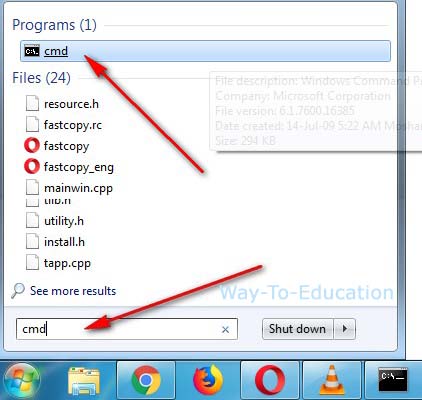
Find Command Prompt From Windows Search Option

Go to windows search box
➜ Type cmd
➜ Right-click on cmd to Command Prompt run as administrator user

Find Command Prompt From Windows Search Option

That's all.

How To Open Group Policy Management Console (GPMC)

The GPMC means Group Policy Management Console. Its actual name of Local Group Policy Editor. Now I will discuss how to open this in your windows.

To Open Local Group Policy Editor In Windows Vista, 7,8

At first open Run command
➜ Type gpedit.msc
➜ Click 'OK' or press Enter key on keyboard
Now you will get the Local Group Policy Editor

To Open Local Group Policy Editor In Windows Vista, 7,8

Useful tips- How To Disable or Enable Command Prompt Using GPO

Launch The Local Group Policy Editor Using MMC snap-in

Now at first open Microsoft Management Console (MMC). So follow the bellow instruction and get MMC for edit or customize Local Group Policy.

Go to Windows search box
➜ Type MMC
➜ Click MMC to open Microsoft Management Console

Launch The Local Group Policy Editor Using MMC snap-in

➜ Press Ctrl M shortcut key on keyboard or click 'File ➜ Add/Remove Snap-in... to adding GPO

How To Open Group Policy Management Console GPMC

Add Windows Group Policy Object (GPO)

Now Double click on 'Group Policy Object...
➜ Click 'Browse...

Add Windows Group Policy Object GPO

➜ Select 'Users
➜ Double click on 'Administrator' or any local user to compatible with Local Group Policy objects.

Add Windows Group Policy Object GPO screen 2


➜ Finish group policy wizard
OK at snap-ins settings page
➜ At last when close console settings must click 'Yes' to save the console.

Add Windows Group Policy Object GPO -screen 3

Now step by step go in Local Computer\Administrator Policy to control your windows uses access.

How To Compress Drive To Save Space In Windows 7,8,10?

If you enable compress content to save disk to get more space your hard disk drive using the NTFS file system. Just follow the bellow lesson to be loaded to access the compressed your PC drive.

Compress Drive To Save Disk Space Using NTFS

Go to ‘My Computer'
Right click on ‘Local Disk C:’
➡ Select ‘Properties’

How To Compress Drive To Save Space In Windows 7,8,10

[A] Select 'General' tab
[B] Checked ☑️ Compress this drive to save disk space
[C] Unchecked ☐ Allow files on the drive to have contents indexed in addition to filing properties
[D] Apply

Compress Drive To Save Disk Space Using NTFS

Compress Hard Drive Windows To Disk Space

Now showing pop-up windows
[A] Checked- ☉Apply changes to drive C:\ only
[B] Unchecked- O Apply changes to drive C:\ subfolders and files
[C] Ok

Compress Hard Drive Windows To Disk Space

That's all & Thanks. You can also get more useful drive compress software automatically speed up your Windows.

Delete Old System Restore Points For Free More Disk Space In Windows

What Is Windows Restore Point?

If you want to be more spaces on your hard drive. When you remove any software or fixing any problem in windows. Your system automatically backup all removal data with windows system restore point. Because feature time you want to this removal date, you can easily to restored all old data from System Restore Point. So decrease your disk spaces at this data. Now I will discuss how to delete or remove all these data files.

Delete Old System Restore Points For Free More Disk Space In Windows

Individually Delete a restore point

➡ Go to ‘My Computer'
➡ Right click on ‘Local Disk C:’
➡ Select ‘Properties’

Individually Delete a restore point

➡ Select 'General' tab
➡ Click 'Disk Cleanup'

Individually Delete a restore point

More tips- How to Delete, Rename, Move Write Protected Any Folder Or Files?

Completely Delete Restore Points Windows

Now get another pop-up page completely remove all old restore backup files.

➡ Select 'More Options'
➡ Click 'Clean up...]
➡ Now get the confirmation window to delete all most recent restore point. So press 'Delete'
➡ Press 'OK'

Completely Delete Restore Points Windows

➡ At last, again you get more popup page to delete permanently and select 'Delete Files'

Delete Old System Restore Points For Free More Disk Space In Windows

That's all. Thank you.

More tips- How To Start PC Boot With "Safe Mode" In Windows Vista/7/8?

How To Enable Run Command In Windows?

Fixed Windows Run Command Is Missing

When you cannot find out your run dialog box on windows. With this way helps to know how to enable and get back to all or specific users. You will be control anything of your windows system files or any program with this run command.

How To Enable Run Command In Windows, Fixed Windows Run Command Is Missing

Useful tips- How to Launch Run Command?

To Enable Windows Run Command

Right click on Start button
➜ Click 'Properties'
To Enable Windows Run Command

➜ Select 'Start Menu'
➜ Customize windows start menu to click 'Customize...

To Enable Windows Run Command -2

➜ Scrolling under and checked ☑ Run command
➜ Press 'OK' to close customization

To Enable Windows Run Command- 3

➜ At last 'Apply'

To Enable Windows Run Command- 4

➜ Finished all work then restart your windows to the visible 'Run' dialog box in the startup menu.

How To Show And Hide Desktop Icons In Windows 7

If you don't like your all icons, folders, programs, shortcut files or anything visible on your windows desktop like a full clean. Its the very simple to hide and show all desktop icons in only one click.

How To Show And Hide Desktop Icons In Windows 7

To Hide Desktop Icons, Shortcut, Anything Right click on desktop any place

➞ Take mouse courser on 'View'
➞ Unchecked ☐ 'Show desktop icons'
That's all.

Useful tips- How To Open Run Command In Windows

To Show/ Unhide Desktop Icons, Shortcut, Anything

Right click on desktop any place
➞ Take mouse courser on 'View'
➞ Checked ☑ 'Show desktop icons'
That's finished.

Useful tips- How To Open Windows Mobility Center In Windows 7

How To Lock, Unlock Or Customize Windows Taskbar

Lock Windows Taskbar

A. Right click on windows taskbar
B. ☑️ Check 'Lock the Taskbar'

Unlock Windows Taskbar

A. Right click on windows taskbar
B. ☐ Uncheck 'Lock the Taskbar'

How To Lock, Unlock Or Customize Windows Taskbar

Customize windows taskbar

Firstly unlock your windows taskbar
Hit your mouse on taskbar top side and drag and drop to customize taskbar.

How To Run Disk Cleanup To Free Up Disk Space?

Free Up Disk Space Windows 10, 7, 8

If your windows are low. You can easily to get more spaces in your hard disk at using disk cleanup without any software. Just deleting any unnecessary files folder such as downloaded program files, temporary internet files, recycle bin, temporary files, thumbnails, system error memory dump files etc. You can also increase PC running speed by using disk cleanup regularly. Just follow the bellow lesson and completely clean your hard disk.

How To Run Disk Cleanup To Free Up Disk Space, how to run disk cleanup windows 8  disk cleanup windows 7  free up disk space windows 7  free up disk space windows 10  disc cleanup windows 10  disk cleanup software  how to free up disk space on windows  disk cleanup command

                More useful tips- Large Size File Convert Into Very Small Size, Reduce File Size

Use Disk Cleanup In Windows

Go to ‘My Computer'
➡ Right click on ‘Local Disk (C:)
➡ Select ‘Properties

Use Disk Cleanup In Windows 10, 8, 7

[A] Select 'General' tab
[B] Click on ‘Disk Cleanup

Free Up Disk Space Windows 10, 7, 8

Delete Unnecessary Files & Junk Files On Windows 10, 8, 7

Now wait sometimes to get cleanup page
[A] Select all files to delete
[B] Click ‘OK
[C] Click ‘Delete Files’ to confirm at permanently delete unnecessary or unwanted files.

Delete Unnecessary Files & Junk Files On Windows

That's all. Thank you.

Large Size File Convert Into Very Small Size, Reduce File Size

Compress Big File Into Smallest Size

You can easily to convert any big size files or software convert into very small or minimum size to follow this lesson. WinRAR is the best compressing or file size converter software. With this software, you can easily to create any big size file or highly compressed software mean converted to very small size.

Big Size File Convert Into Very Small Size, Reduce File Size, Compress Big File Into Smallest Size with winrar

Compress Large Files To Small Size With WinRAR

Firstly you need to download original version WinRAR software then successfully installed on your PC.
  • WinRAR Software Final Full Version Download

To Highly Compress Files Using WinRar

Now follow the bellow lesson step by step and compress a files or folder to a smaller size

Step 1:
[A] Select your complete files and click right button on selected files
[B] Click Add to archive… on the drop-down menu

big video file to small video file converter  how to compress large files to small size with winrar  how to compress large files to smaller size using winrar  how to compress 3gb to 10mb using winrar

Step 2:
 [A] Archive format, compression method, archiving options select as your choice
 [B] Press “OK” to get your file converted to .rar compressed file in the same folder

how to compress 3gb to 10mb using winrar  how to compress large files to smaller size using winrar  how to compress large files to small size  kgb-file-archiver-download  how to compress a folder to a smaller size  how to compress 1gb to 1mb using winrar  how to compress large video files to small size  compress zip file smaller

That’s all.
Thanks a lot

WinRAR software related tips:
What Is BIOS Computer? BIOS Definition, How Does BIOS Work?
What Is IP Address? Know About IP Addresses

How To Reset Opera Browser Complete Settings?

How To Reset Opera Browser Complete Settings, Reset Opera Browser to Default Settings

Reset Opera Browser default Settings

You can easily to restore your Opera web browser in a simple way. Just follow the bellow tips and reset latest version Opera browser.

Step 1- Find Opera browser complete information

[A] Run Opera browser and type opera://about in address bar then hit Enter key
[B] Now you will see complete about Opera browser complete information and copy or note the Paths- Profile and Cache location text
C:\Users\Mosharraf\AppData\Roaming\Opera Software\Opera Stable
C:\Users\Mosharraf\AppData\Local\Opera Software\Opera Stable

Here blue color Mosharraf is my username.

Find Opera browser complete information

Now exit your Opera browser then go to this location and delete two folders

Step 2- Delete Opera Profile and Cache folders For Default Settings

  • Open ‘Run’ command
  • Firstly type Profile location without Opera Stable in command box then hit Enter
Delete Opera Profile and Cache folders For Default Settings
  • Now you will see Opera Stable folder. Ok just delete this folder
see Opera Stable folder
  • Second again open ‘Run’ command and type cache location without Opera Stable in command box then hit Enter
Opera Stable in command box
  • Now you will see other Opera Stable folder. Ok just also delete this folder
see other Opera Stable folder

That’s all
Now your Opera browser is liked new.

How To Any Files Find Or Search Between Date To Date?

Search For Missing Files Created Or Modified Between Two Dates

If you lost any files from your PC. So you can easily to choose simply search box or hit F3 key to search or find your files. But if you lost or forget your file name, of course, you need to choose another way to find your file. Here I will discuss how to find any lost files between date to date on windows 7, windows 8 and windows 10

How To Any Files Find Or Search Between Date To Date in Windows 10, Windows 8, Windows 7, Windows Vista, Windows XP, Search For Missing Files Created Or Modified Between Two Dates

Search Files By Date In Windows 10, 8, 7

Step 1: Open your folder or disc where you want or lost files
Step 2: type the following in search box and hit Enter

modified:19/1/2016 .. 1/31/2017

Customize: Must be you need to change your date .. date as you need. If you want to search by file format keyword you can use the below code

name:rar modified:19/1/2017 .. 1/31/2017

Here I will try RAR format file. You can change a file format keyword.

How To Any Files Find Or Search Between Date To Date, Search Files By Date In Windows 10, 8, 7

That’s all. Thank you.

How To Open Run Command In Windows 10, 8, 7, Vista, XP

How To Open Run Command In Windows 10, 7, 8, vista, Easy Way To Get Run Command

Easy Way To Get Run Command:

You can control anything on windows by using run command. Just open run dialog box and command any programs location than press enters to running your program. Run command always follows in your windows system files or folder like windows destination.

Recommended- How To Enable Run Command In Windows

Run Command Shortcut Key

Just press shortcut key in keyboard Windows+R

How To Open Run Command In Windows, Run Command Shortcut Key

Get Run Command From Start Menu

Go to Start
➜ All Programs
➜ Accessories
➜ Run

Get Run Command From Start Menu

Open Run Command Windows Search Option

Go to windows search box
➜ Type run
➜ Click on Run' to open run command

Open Run Command Windows Search Option
That's all.