Showing posts with label Run. Show all posts

How To Open Command Prompt In Windows 10, 8, 7, Vista, XP?

Open Command Prompt By Using Run Command .cmd

With this way, you can open a command prompt in Windows XP, 7, 8 together.

How To Open Command Prompt In Windows 10, 8, 7, Vista, XP

➜ Just Open Run dialog box
➜ Type cmd
➜ Click ‘OK’ or press ‘Enter’ on keyboard
But in this way can not directly open administrator user. Its used only own local user. So you can follow the method two and method third.

Open Command Prompt By Using Run Command

Related tips- How To Disable or Enable Command Prompt Using GPO?

Method 2:

Get Command Prompt By Using Start Menu to run as administrator user

➜ Go to Start menu or click on start icon
➜ All Programs
➜ Accessories
➜ Now right click on Command Prompt to run as administrator user

Get Command Prompt By Using Start Menu

Method 3:

Find Command Prompt From Windows Search Option

Go to windows search box
➜ Type cmd
➜ Right-click on cmd to Command Prompt run as administrator user
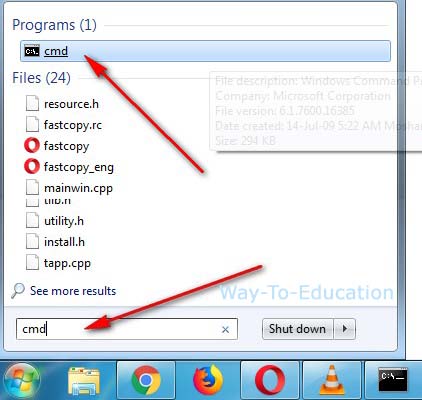
Find Command Prompt From Windows Search Option

That's all.

How To Open Run Command In Windows 10, 8, 7, Vista, XP

How To Open Run Command In Windows 10, 7, 8, vista, Easy Way To Get Run Command

Easy Way To Get Run Command:

You can control anything on windows by using run command. Just open run dialog box and command any programs location than press enters to running your program. Run command always follows in your windows system files or folder like windows destination.

Recommended- How To Enable Run Command In Windows

Run Command Shortcut Key

Just press shortcut key in keyboard Windows+R

How To Open Run Command In Windows, Run Command Shortcut Key

Get Run Command From Start Menu

Go to Start
➜ All Programs
➜ Accessories
➜ Run

Get Run Command From Start Menu

Open Run Command Windows Search Option

Go to windows search box
➜ Type run
➜ Click on Run' to open run command

Open Run Command Windows Search Option
That's all.